


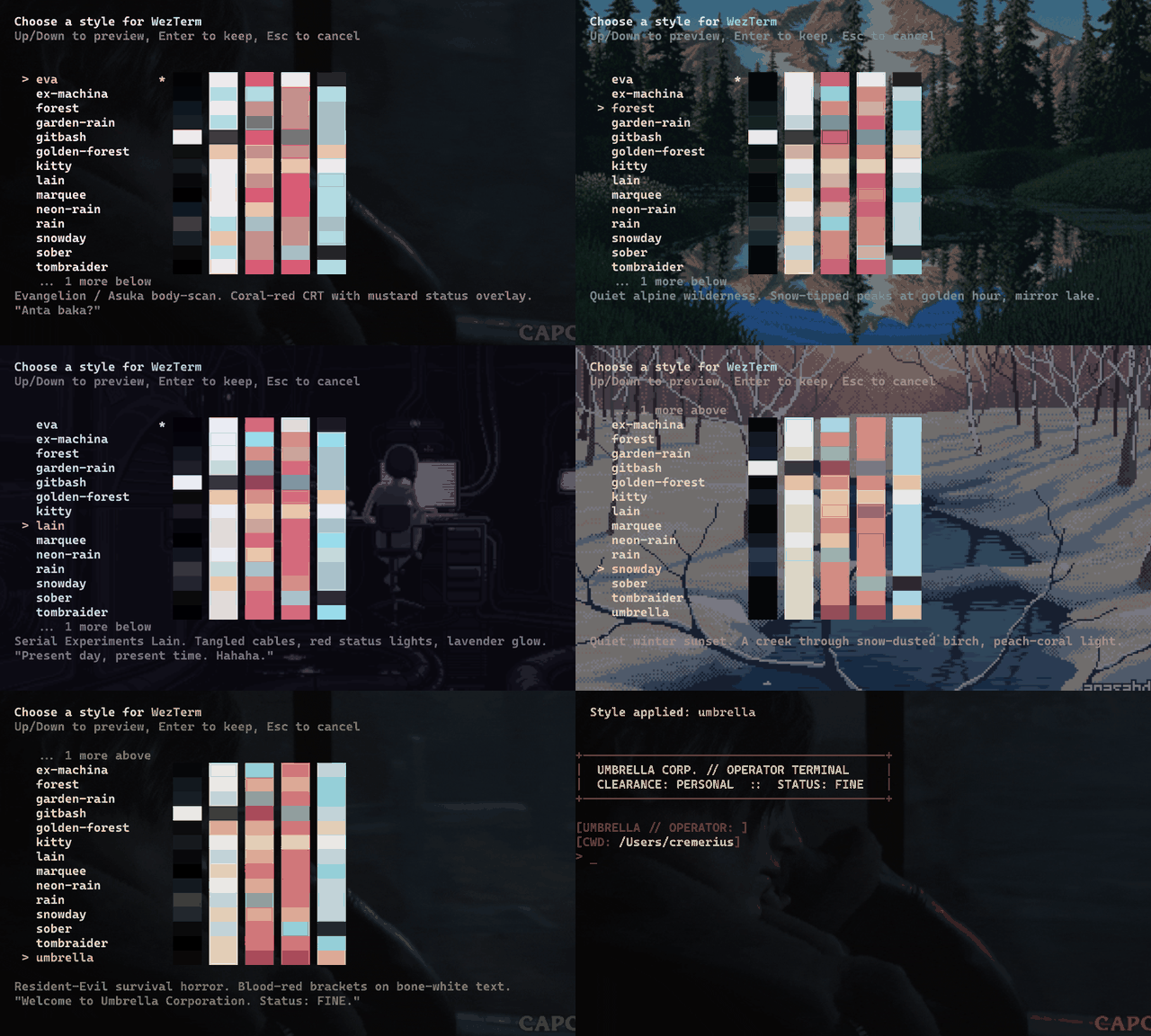
Switch terminal themes live. Run tstyles, arrow through 18 themes
previewing each one in your current tab — Enter keeps it, Esc reverts to
exactly how it looked before. The palette, the cursor color and the prompt
repaint instantly on any terminal that speaks OSC; on Windows Terminal and
WezTerm the font, opacity and animated background come with them. All in one
command, all non-destructive.
Works on Windows Terminal, macOS Terminal.app, iTerm2, and any
terminal that speaks OSC color sequences — and in zsh and bash, not just
PowerShell. Runs on PowerShell 7 and Windows PowerShell 5.1. Keep your own prompt
(Oh My Posh / Starship) with tstyles <name> -KeepPrompt.
Install-PSResource -Name TerminalStyles
Import-Module TerminalStyles -DisableNameChecking
On macOS and Linux this needs PowerShell first — brew install powershell,
or see Requirements. On Windows it is already there.
Add the Import-Module line to your $PROFILE so it loads on every
new shell tab — or run tstyles register once and it does that for
you, with a confirm prompt first. It writes to the $PROFILE of each
PowerShell engine it finds on your PATH — on Windows that is pwsh 7 and
Windows PowerShell 5.1; on macOS and Linux, pwsh and pwsh-preview —
skips one that isn't installed, and writes once where two of them share
one file. The prompt names each file first. Then:
tstylesArrow keys preview each style live, Enter keeps it, Esc cancels.
For setups without PSResourceGet
(rare on modern Windows; ships natively in pwsh 7.4+), use the
bootstrap one-liner installer instead. It also auto-registers the
loader in your $PROFILE:
iwr -useb https://raw.githubusercontent.com/fcreme/TerminalStyles/main/install.ps1 | iexThis downloads to %LOCALAPPDATA%\TerminalStyles\, registers a
loader for every PowerShell engine it finds, and offers to fix
restrictive execution policies if needed. Once it finishes, run
tstyles immediately in the same tab.
The bootstrap install and the PSGallery install can coexist —
whichever your $PROFILE loads wins; the other is orphaned silently.
umbrella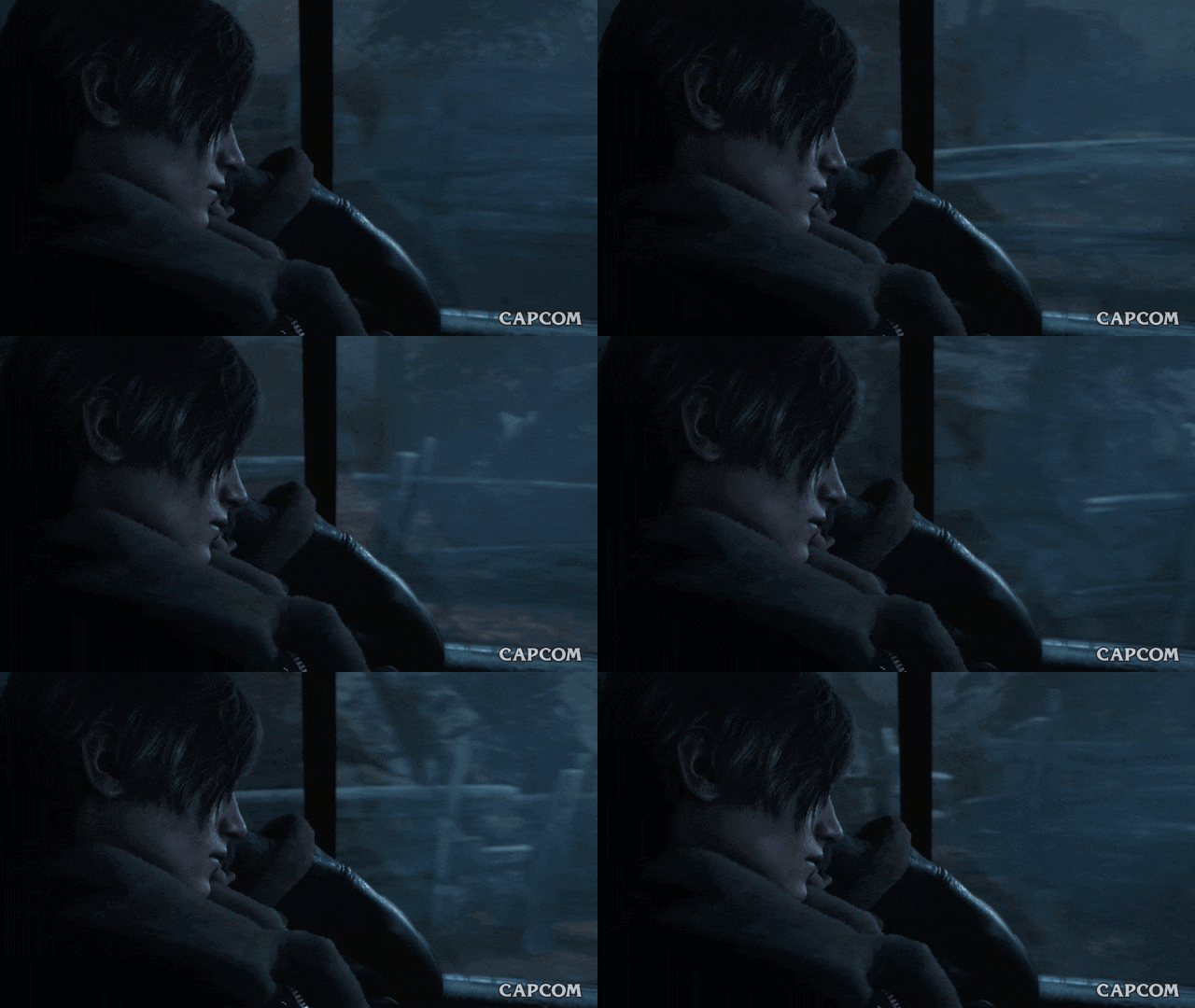 |
eva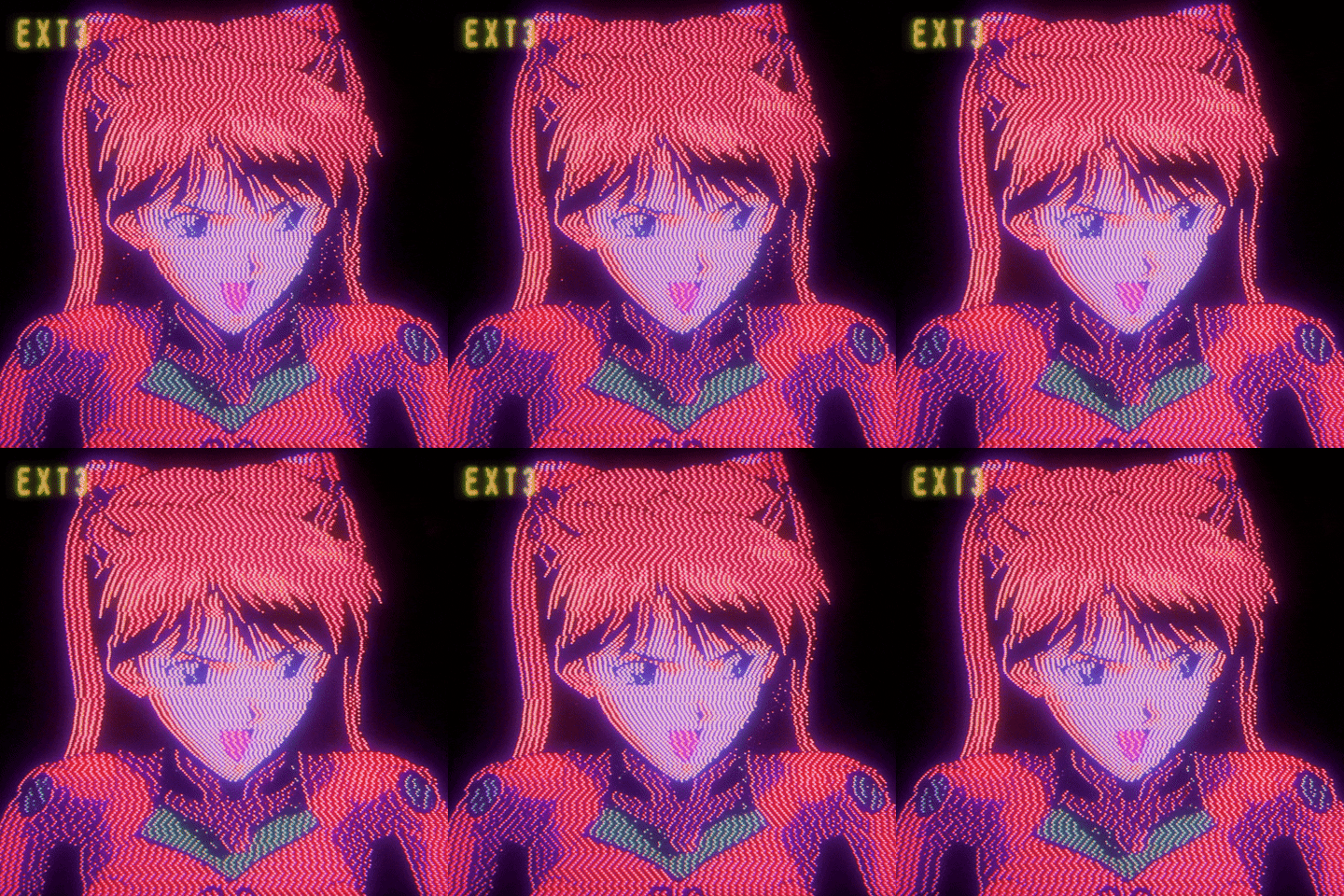 |
ex-machina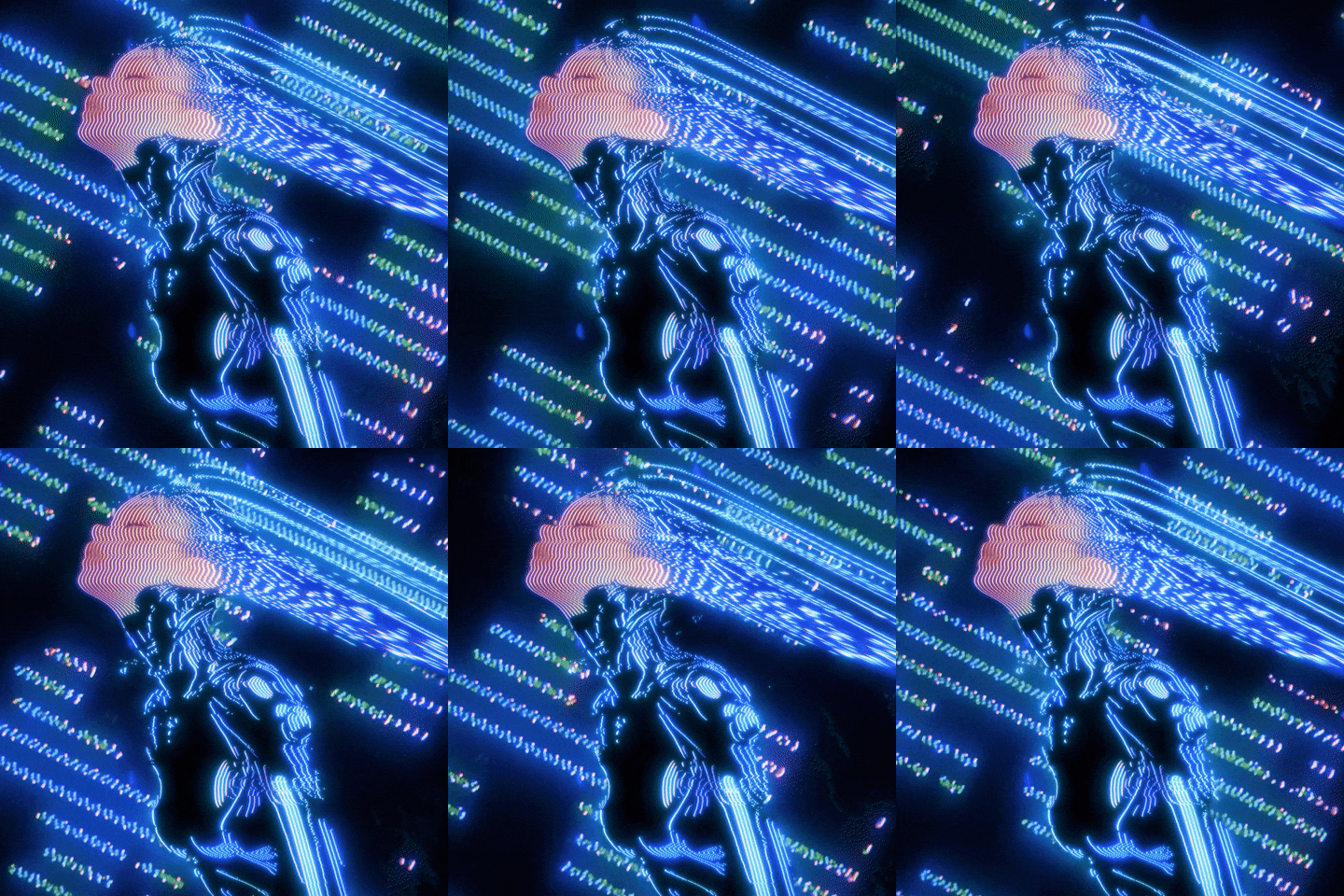 |
forest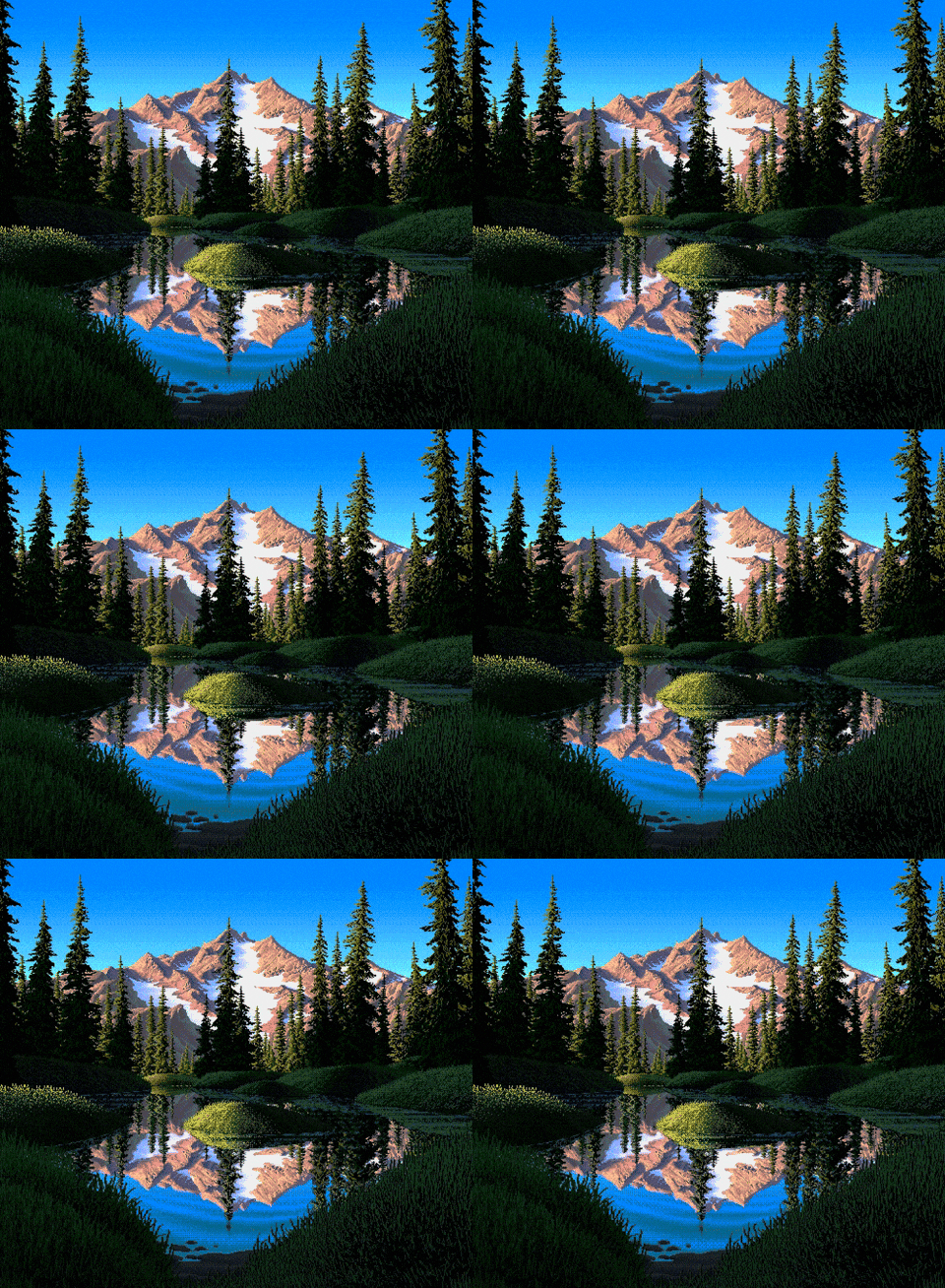 |
||
garden-rain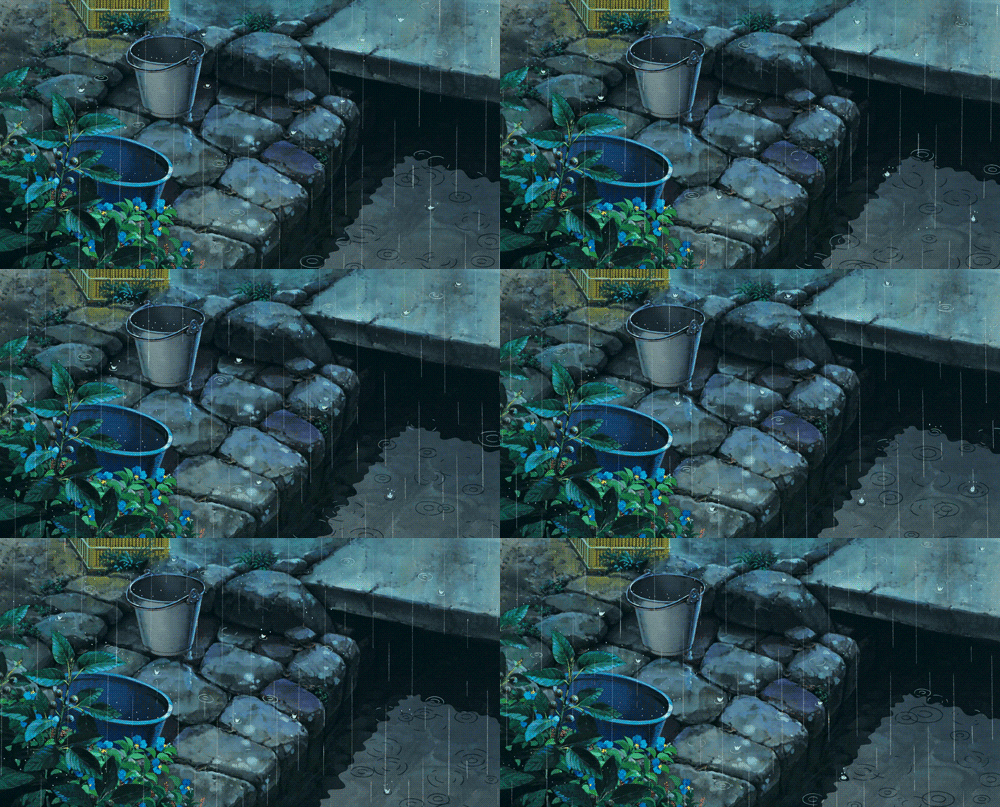 |
gitbash |
golden-forest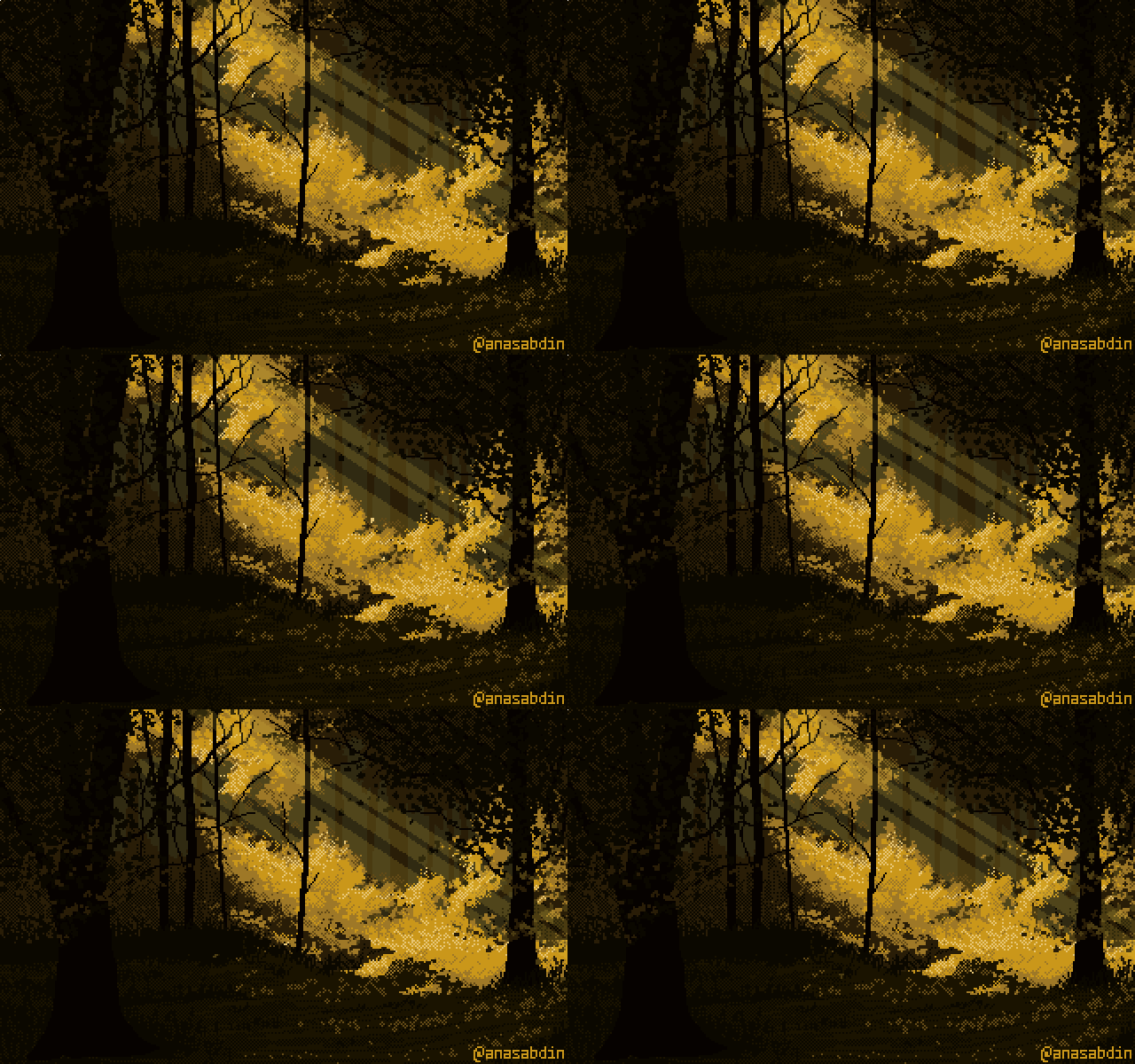 |
kitty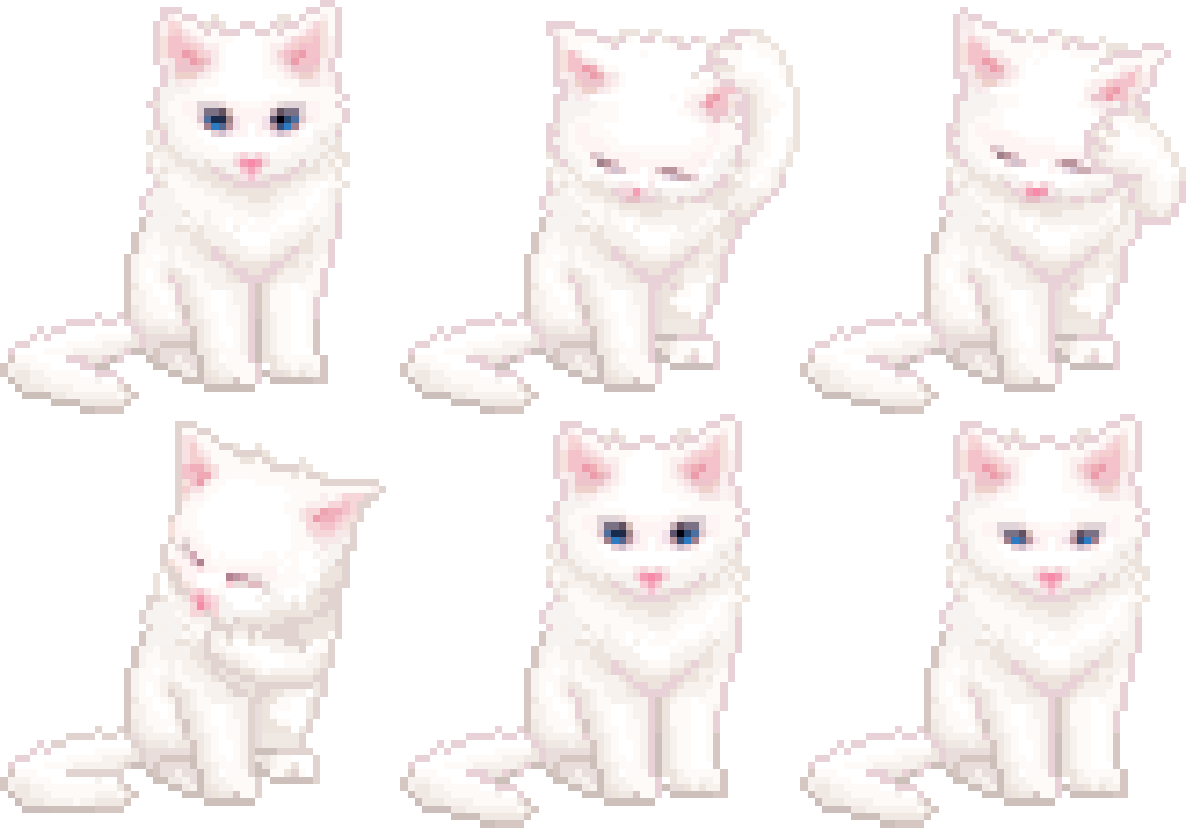 |
||
lain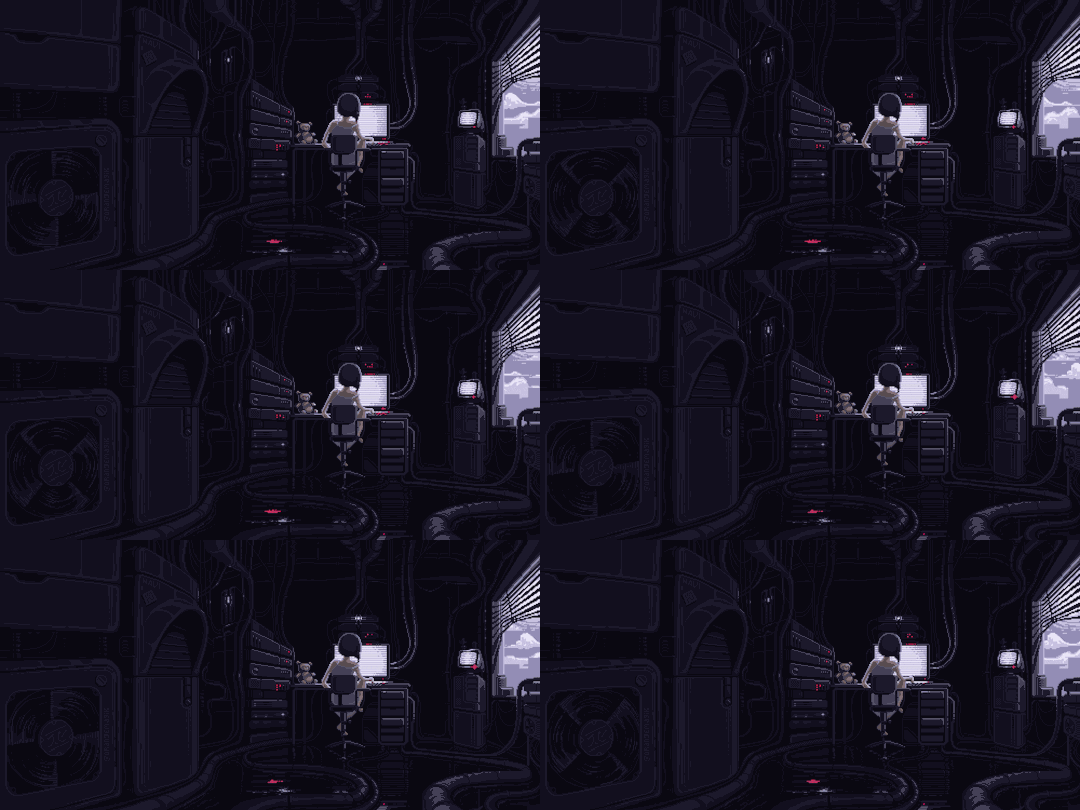 |
marquee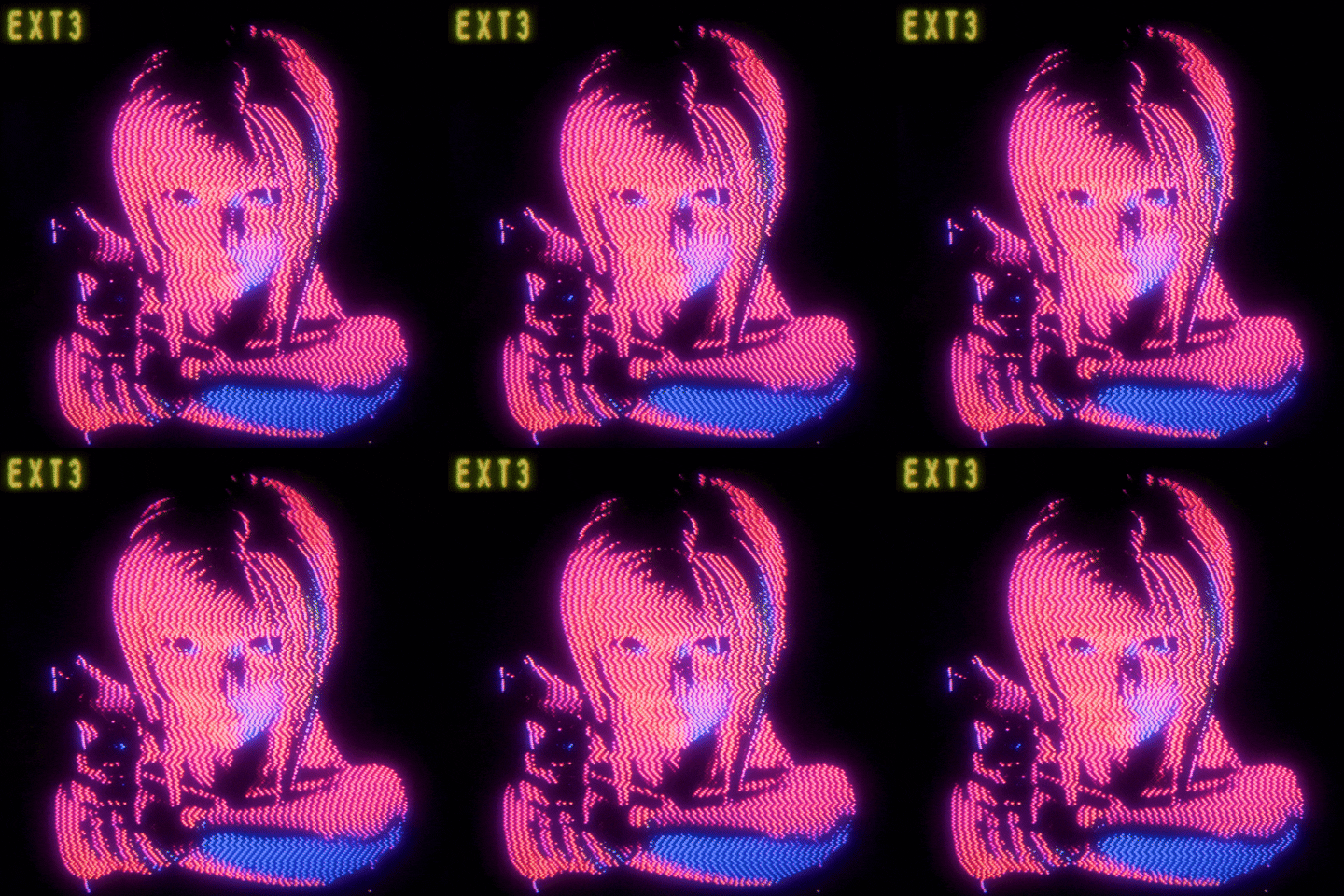 |
neon-rain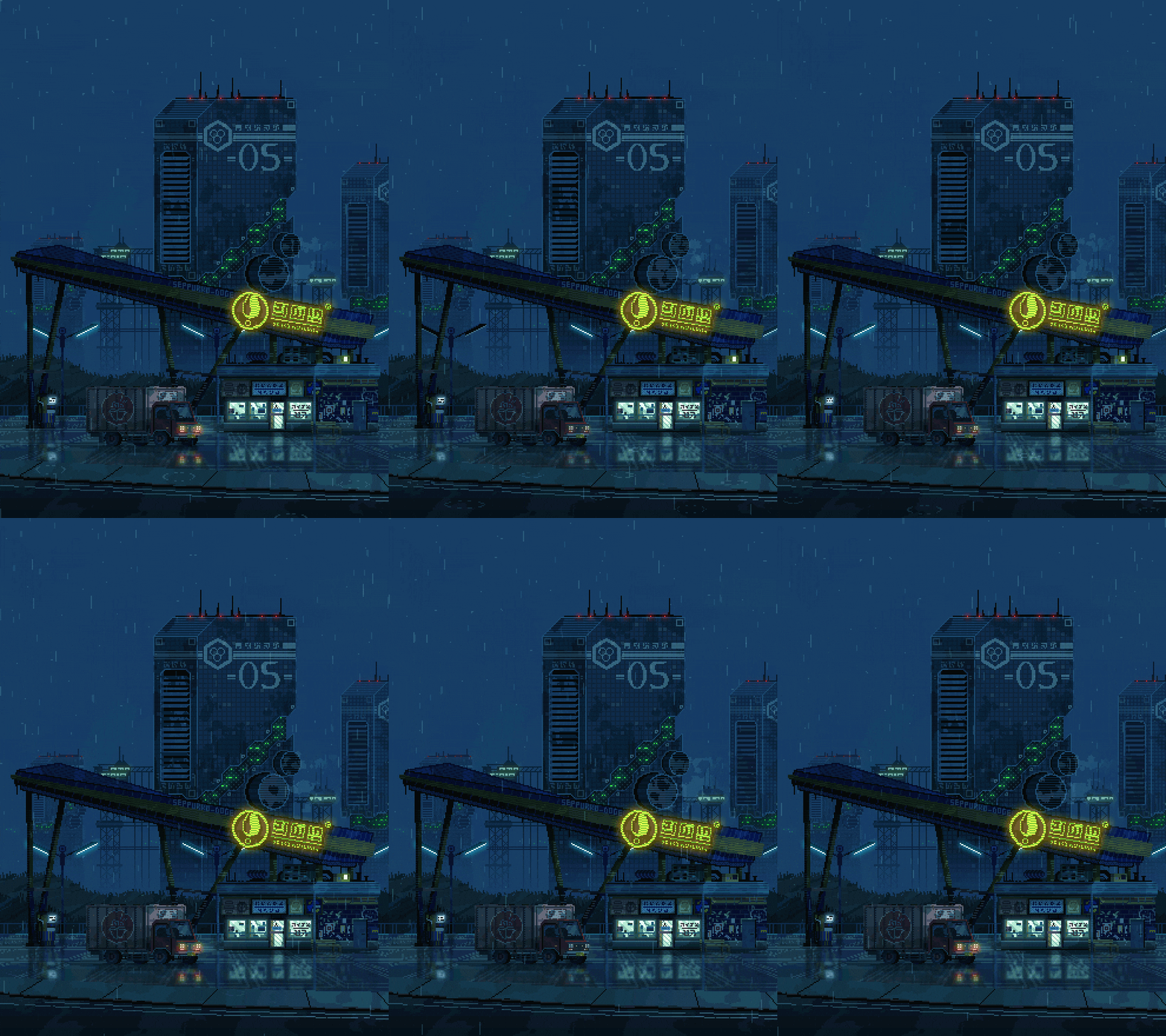 |
rain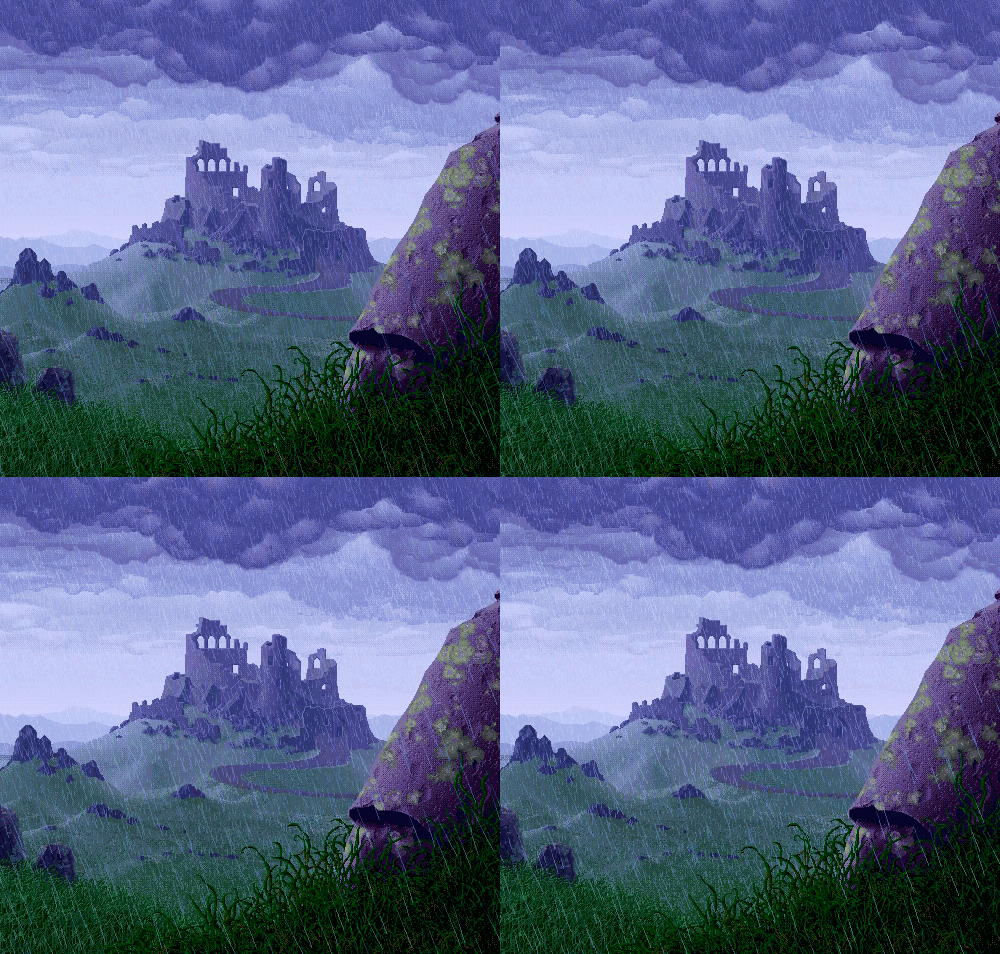 |
||
snowday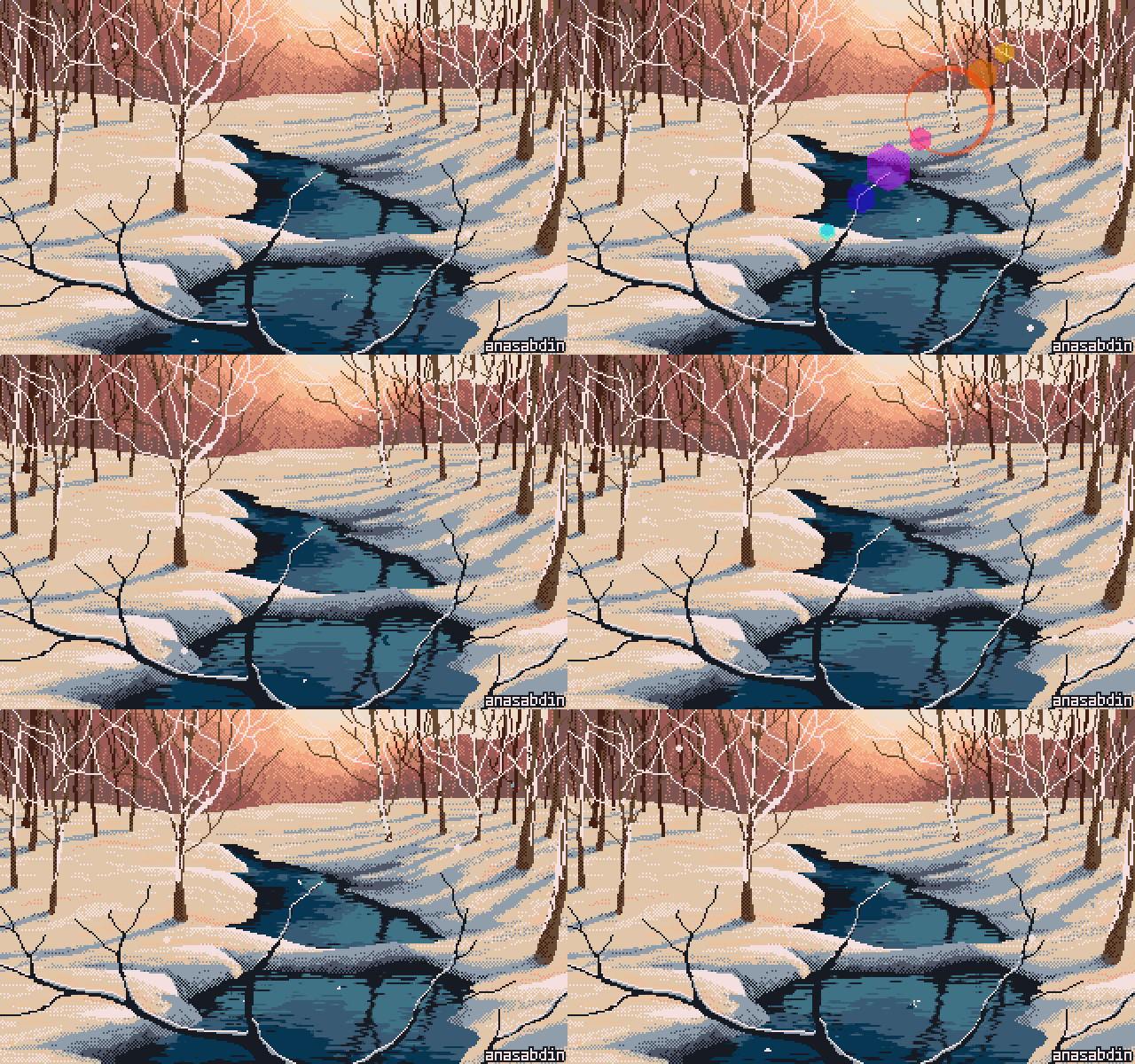 |
sober |
tombraider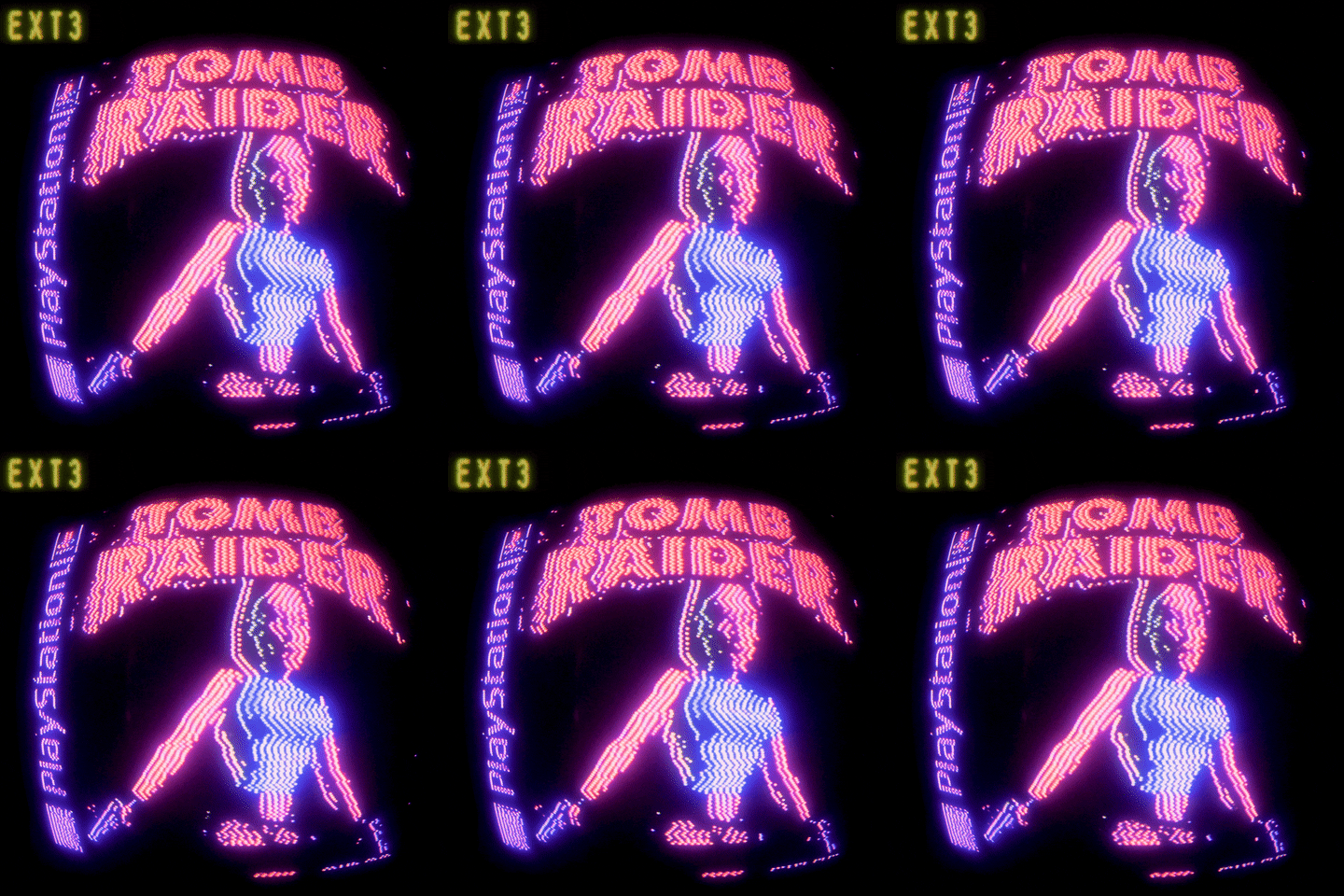 |
koholint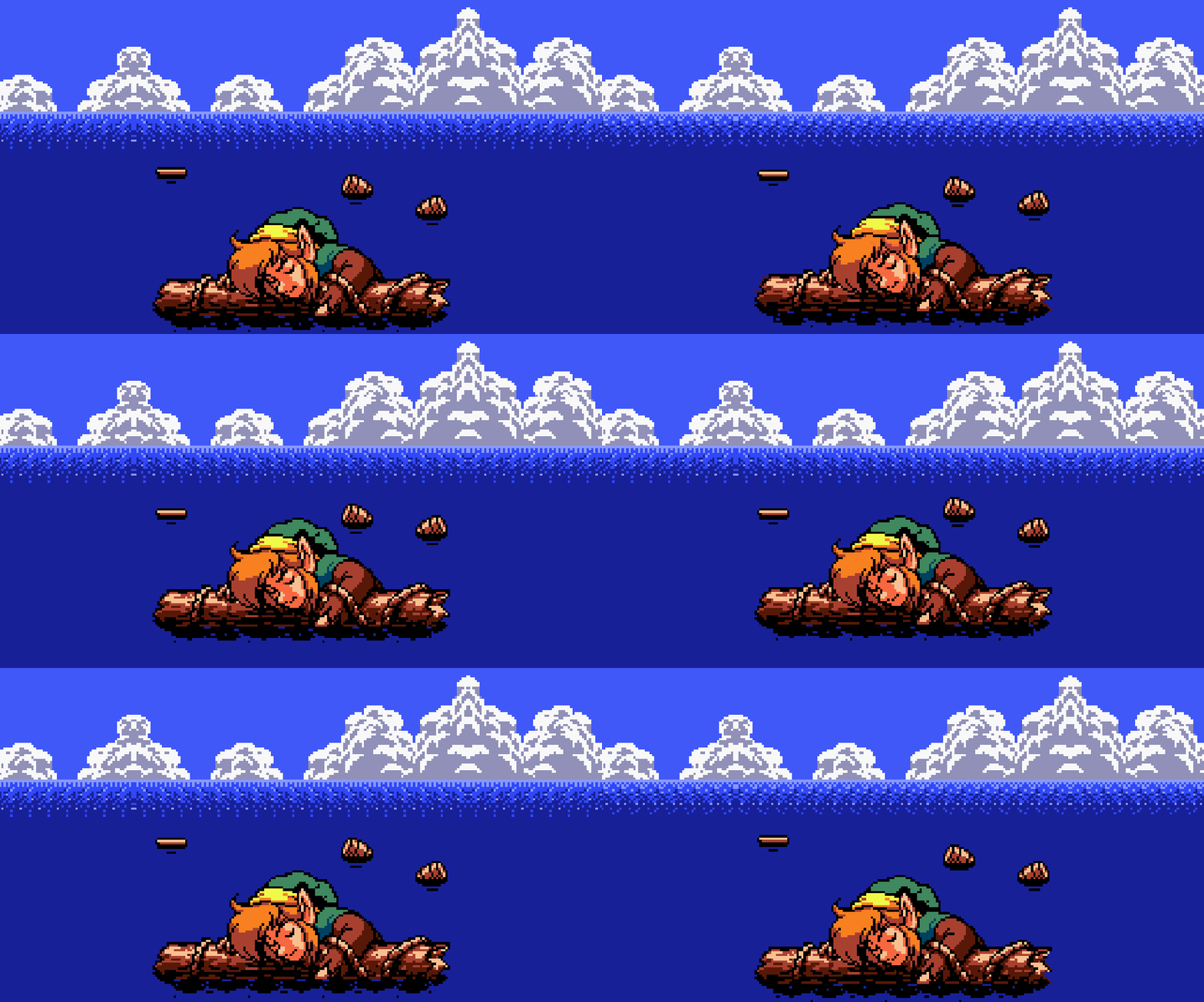 |
skyline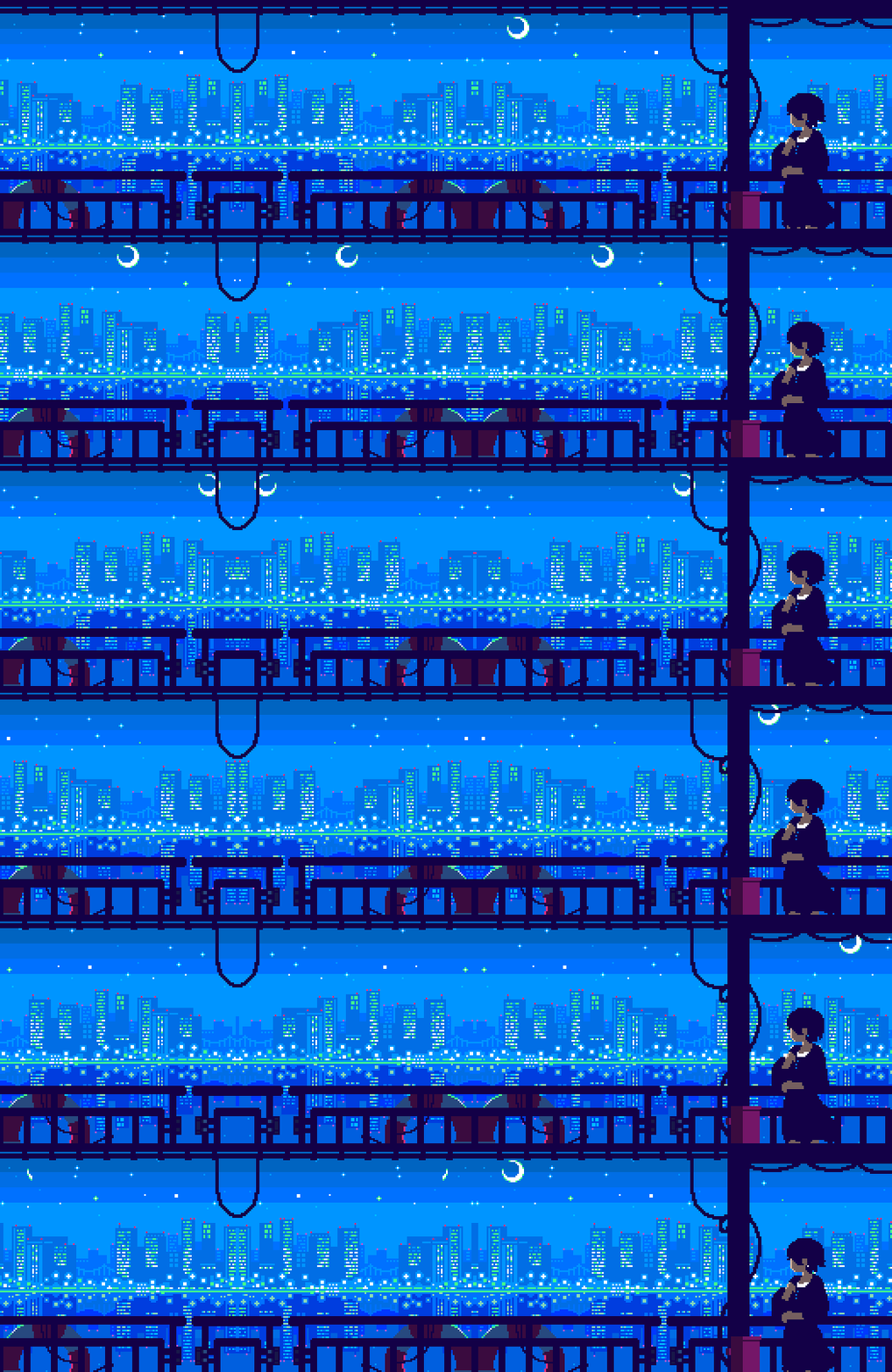 |
phosphor |
PS C:\> tstylesArrow-key menu, with a 5-color swatch next to each style so you can see the palette before previewing:
  Choose a style for 'PowerShell'
  Up/Down to preview, Enter to keep, Esc to cancel

   > umbrella         ██████████
     eva              ██████████
     ex-machina       ██████████
     ...
As you arrow up/down, the terminal actually changes in real time: the
palette, the foreground and the cursor color, on every terminal that
speaks OSC. On Windows Terminal the font, opacity and background GIF
follow a beat later, once the keypresses stop. Press Enter to keep
the highlighted style, Esc to revert to how things looked before
you ran tstyles.
tstyles umbrella                  # Apply a specific style directly (no picker)
tstyles list                      # List all themes; '*' marks the active one, 'yours' marks yours
tstyles current                   # Print just the active style name
tstyles show <name>               # Preview a style's colours, then put the terminal back. Applies nothing.
tstyles random                    # Pick a random style and apply it
tstyles reset                     # Revert the active profile to its unstyled default
tstyles tune [name]               # Live-tune brightness/saturation/opacity/font; save as a style
tstyles delete [name]             # Delete a style you made (bundled styles are refused)
tstyles trash                     # List deleted styles, and how long each one has left
tstyles restore [name]            # Put a deleted style back; never overwrites a live one
tstyles font [name]               # List coding fonts, or install one and apply it
tstyles register                  # Auto-add `Import-Module TerminalStyles ...` to each engine's $PROFILE
tstyles shell-init                # Style zsh/bash too: add the loader to ~/.zshrc, ~/.bashrc, ~/.bash_profile
tstyles shell-remove              # Remove that zsh/bash loader again
tstyles profiles [-Clean]         # macOS: Terminal.app profiles this tool left behind; -Clean removes duplicates
tstyles update                    # PSGallery: Update-PSResource. Bootstrap: re-run installer.
tstyles uninstall                 # Remove module + strip $PROFILE loader. Preserves user state.
tstyles uninstall -DeleteData     # As above, plus delete %LOCALAPPDATA%\TerminalStyles\ entirely.
tstyles help [command]            # Show all commands, or details for one
Tab completion works on the subcommand and style names:
tstyles u<TAB> cycles umbrella, uninstall, update. tstyles delete <TAB> offers only the styles you may delete, and tstyles restore <TAB>
only the names sitting in the trash.
tstyles delete <name> never erases: it moves the folder to
.deleted/<name>-<timestamp> in your data dir and keeps it for 7
days. tstyles trash lists what is in there, when each one went and
how many of its days are left; tstyles restore <name> moves the newest
copy back under the plain name — the timestamp does not come with it.
A restore refuses rather than overwriting: if you have since made a new
style under that name, it says so and leaves the trashed copy where it
is. Nothing in the trash is erased until the next tstyles delete,
which lists every expired folder in red on the screen you confirm.
tstyles tune            # tune the active style
tstyles tune eva        # tune a specific style
Opens a live editor with arrow-key sliders for brightness, saturation, opacity, font face, and font size. Up/Down selects a knob, Left/Right adjusts it, R resets colors, Enter saves, Esc reverts. Colors retint instantly; opacity/font follow a beat later (one Windows Terminal reload).
The font face knob cycles every monospace font installed on your machine (curated favorites first), so your own coding fonts show up automatically.
On save you choose Overwrite or Save as a new name. What Overwrite means depends on where the style lives, and the prompt says which: for a bundled theme it shadows the original, which stays in the module and comes back if you delete your copy; for a theme that exists only in your user-styles dir it replaces that theme, so it asks first.
Either way the result lands in your user-styles dir as a full style — so it
shows up in tstyles list, the picker, and tab-completion, and survives
tstyles update and tstyles uninstall even when it carries a bundled
theme's name. It inherits the base theme's background, and a small
tune.json records what you chose.
After a Save as, tstyles tune <new-name> resumes where you left off:
the brightness and saturation you set come back on the sliders. After an
Overwrite they do not, and this is deliberate — the colors are already
baked into the style itself, so re-applying the same adjustments on top
would darken or saturate it twice over. Re-tuning an overwritten theme
starts from neutral against its current colors; the opacity and font you
saved still come back. For the same reason, if the theme you tuned from
has itself changed since, the tuner says so and starts from its current
colors rather than stacking one set of adjustments on another.
tstyles font                      # list the catalog, with installed/installable markers
tstyles font 'JetBrains Mono'     # install it (if needed); on Windows Terminal, apply it too
Six curated fonts are available — JetBrains Mono, Fira Code,
Cascadia Code, Hack, Source Code Pro, and IBM Plex Mono.
Each is downloaded from its official GitHub release, checked against a
pinned SHA-256 before anything is unpacked, and installed per-user
into %LOCALAPPDATA%\Microsoft\Windows\Fonts — no administrator rights
needed, and nothing is written outside your profile.
Already-installed fonts are detected and skipped, so re-running the
command is cheap. Once a font is installed it also shows up in the
tstyles tune font-face knob and in the picker, alongside the monospace
fonts you already had.
Applying the font to a profile is a Windows Terminal thing —
settings.json is the only config file tstyles font writes. On every
other terminal the install is the whole job: the command says so and
leaves you to select the font in your terminal's own settings.
The first time you run tstyles, a one-time prompt offers to install the
whole set. Decline it and you're never asked again — tstyles font is
always there if you change your mind.
Applying a style normally also sets that style's prompt and banner. If you run
a prompt engine like Oh My Posh or Starship, add -KeepPrompt to get
the style's colors, cursor, font, and background without touching your
prompt:
tstyles eva -KeepPrompt # eva's look; your prompt staysThe scriptable apply.ps1 accepts the same flag (apply.ps1 -KeepPrompt,
with -NoProfile kept as an alias). A -KeepPrompt apply is still reported by
tstyles current and the * in tstyles list: detection normally byte-compares
the installed prompt, which this flag deliberately leaves alone, so it falls back
to the style record that every apply writes.
On Windows Terminal a style is written to one profile — by default the one the
tab you are sitting in uses. -Target names a different one:
tstyles eva -Target 'Ubuntu'   # style that profile instead of this tab's
tstyles eva -Target defaults   # style profiles.defaults: everything inherits it
defaults is a target name, not a placeholder. It is Windows Terminal's
profiles.defaults block, which every profile that does not set a field itself
inherits — so a style applied there reaches all of them at once. That is also
why it is the one target that can change a profile you did not name: applying a
later style with no background image of its own clears the image from
defaults, and every profile that was inheriting it loses that image too.
The tool offers the name — it is first in the list a mistyped -Target prints,
and first in the menu apply.ps1 shows when you do not pass one — so it is
documented here rather than only in that error message.
tstyles reset takes the same -Target, including defaults.
To undo theming and return a profile to Windows Terminal's plain default:
tstyles reset                  # the active profile
tstyles reset -Target 'Ubuntu' # a specific profile
tstyles reset -Target defaults # the block every profile inherits from
This strips the colors, cursor, font, opacity, and background a style added,
removes the now-unused color scheme, and restores your own prompt (open a new
tab to see it). It's the inverse of applying a style, and writes a
settings.json.bak first — that last part is Windows Terminal only. Elsewhere
there is no settings.json to strip: the reset is an escape sequence handing
color control back to the terminal's own profile, so there is nothing to back
up and no .bak is written. Fields you set on the profile by hand are left
alone.
If you styled profiles.defaults (tstyles eva -Target defaults), a reset of
one profile also has to deal with what that profile inherits — Windows
Terminal resolves every profile against profiles.defaults, so stripping the
entry alone hands the window straight back to the inherited copy. A background
image on profiles.defaults that TerminalStyles put there is cleared with the
profile, and the command says so, because that clears it for every profile
inheriting it. An inherited color scheme is not: removing it would restyle
every other profile on a command that named one. Reset says which scheme is
still coming from profiles.defaults and how to clear it
(tstyles reset -Target defaults) rather than reporting an unstyled default you
would not see.
Eighteen themes ship out of the box. Click any name to jump to that style's folder for full palette / prompt / theme.json details.

Resident-Evil / survival-horror. Blood-red brackets, bone-white text, three-line classified-doc prompt with a startup banner. "Welcome to Umbrella Corporation. Status: FINE."
A green phosphor tube. Twelve of the sixteen ANSI slots are one green at different brightnesses, because that is all a P1 tube could do — the four that are not are amber, for the alarm a green screen could not paint. "READY."

A balcony over the city at night. Saturated indigo, lit windows, and a strip of green signage along the far bank — the one bright colour in the frame, so it is the cursor. "The city keeps its own hours."

Link's Awakening, adrift off Koholint. GBC sea blue and cloud white, with the hat band as the only yellow on screen — so it is the cursor and nothing else. "The Wind Fish sleeps long."

Evangelion / Asuka body-scan. Coral-red CRT palette with mustard yellow status overlay. NERV operations banner. "Anta baka?"

Ava body-scan / Bluebook research. Cold electric cyan wireframe with a coral pink accent. "You've been programmed and fed by another. Are you bothered?"

Quiet alpine wilderness. Pixel-art mountain vista — snow-tipped peaks at golden hour, deep evergreen forest, mirror lake. Cool blue-green base, peach accents. No banner — gentle for long sessions.

Ghibli-style garden rainfall. Wet stone steps, a metal bucket and a blue plastic one catching rainwater, leafy plants with blue flowers. Cool slate-blue base, plant-green cursor, no banner.

Git Bash / MinTTY recreation. White background, near-black text, bar cursor, the classic multi-color prompt with live git-branch detection. The only light-mode theme in the catalog.

Warm sepia autumn. Amber and moss palette over deep dark green. Quiet — no banner, gentle for long sessions.

Soft pastel CRT. Pink, lavender, mint pastels. Retro / vintage cursor, acrylic. The most playful theme in the set.

Serial Experiments Lain. Lain at her Navi — tangled cables, faint red status lights, the teddy bear. Deep blackish base, lavender-pink monitor glow, vintage CRT cursor. "Present day, present time. Hahaha."

EXT3-series LED marquee. Hot magenta dot-matrix portrait, blue arm accents, gold EXT3 label. Pure black canvas, right-aligned image so text sits on the left half. Sister piece to tombraider. "Through the glass, after hours."

Cyberpunk rainy night. District-05 corporate tower, neon yellow sign, matrix-green displays, lone delivery truck under steady rain. Deep blue base, neon yellow cursor, matrix-green status accents. "The neon never sleeps."

Contemplative highland-storm. Slate-purple stormy sky, moss-yellow accents, rust for the lone cloaked traveler. Field-journal banner. "Still no sign of the others."

Quiet winter sunset. Pixel-art creek through a snow-dusted birch grove, peach-coral light through bare branches, soft dusty mountain in the distance. Deep dusk-blue base, sunset peach cursor, no banner.

Minimalist monochrome. Grayscale with one subtle teal accent, no banner, single-line prompt. The opposite of umbrella's drama.

90s arcade marquee. LED-pixel TOMB RAIDER sign in hot neon magenta with Lara's silhouette, gold EXT3 label, cyan highlights. Pure black base, neon magenta cursor, vintage CRT cursor. "Press start."
Most screenshots are generated by scripts/capture-screenshots.ps1 (see
Adding your own style below). If they're missing or out of date, run
that script from inside Windows Terminal and commit the output.
Some are renders drawn by scripts/make-preview.py instead, and each
says so in its style README. capture-screenshots.ps1 writes every theme,
so it will replace those with captures — regenerate a render with
python3 scripts/make-preview.py <style> and commit only the files you
meant to change. tests/Screenshot-Provenance.Tests.ps1 fails if a render
and its note disagree.
TerminalStyles works outside Windows Terminal. Colors are applied as OSC escape
sequences, which every current terminal understands, so tstyles eva retints
the window you are sitting in immediately — and, because the choice is recorded,
every tab you open afterwards too.
brew install powershell                  # macOS; on Linux, your package manager or https://aka.ms/powershell
pwsh
Install-PSResource -Name TerminalStyles
Import-Module TerminalStyles -DisableNameChecking
tstyles # the picker, live-previewing as you arrowColors belong to the terminal, not to any one shell, so a zsh tab already picks up the palette. The prompt and banner need one extra step:
tstyles shell-initThat adds a small loader to ~/.zshrc, ~/.bashrc and ~/.bash_profile. New
zsh/bash tabs then come up in the full style — palette, window title, banner,
and the style's prompt — and those shells get a tstyles command of their own:
% tstyles umbrella
% tstyles list
tstyles shell-remove takes the loader back out.
macOS and Linux only. On Windows this command writes the loader into rc files under
C:\Users\<you>and the tab still comes up unstyled: the runtime resolves its data root to$HOME/.local/share/TerminalStylesunder an MSYS/Cygwin bash (Git Bash), while the PowerShell side stages the applied style to%LOCALAPPDATA%\TerminalStyles.tstyles shell-initsays so before it writes anything. A WSL shell is unaffected either way — it has its own$HOME, and a pwsh installed inside WSL is an ordinary Linux install where both halves agree.
The loader reads only files that were precomputed when you applied the style, so
it never starts PowerShell on shell startup, and it produces no output at all
in a non-interactive shell — ssh host command, scp, and rsync are
unaffected.
The PowerShell profiles also set PSReadLine syntax-highlighting colors. zsh and bash have no equivalent, so
prompt.shports the title, banner, and prompt only.
| Colors | Cursor | Font | Opacity | Background image | Tab color | |
|---|---|---|---|---|---|---|
| Windows Terminal | ✅ | ✅ shape + color | ✅ | ✅ | ✅ animated | ✅ |
| WezTerm | ✅ | ✅ shape + color | ✅ | ✅ | ✅ animated | ✅ |
| Terminal.app | ✅ | color only | — | — | ✅ still, new window | — |
| iTerm2 | ✅ | color only | — | — | — | — |
| Ghostty / kitty / Alacritty | ✅ | color only | — | — | — | — |
| VS Code terminal | ✅ | color only | — | — | — | — |
Colors, including the cursor color, arrive as escape sequences and retint the
window you are already in. Everything else has to be written into a config the
terminal reads at startup, and TerminalStyles knows how to write three of
those: Windows Terminal's settings.json, Terminal.app's .terminal profile,
and WezTerm's generated Lua module.
So the dashes above describe this tool, not the emulator. iTerm2 would honour a
Dynamic Profile; nothing here writes one yet. They are marked — rather than
✅ on purpose — a claimed capability that no code delivers means a style
reports success, paints nothing, and suppresses the notice that would have
explained why.
WezTerm is the only terminal outside Windows that animates a background GIF, and every bundled style ships one. Terminal.app can show a still first frame at best, so this is the one way to see those backgrounds move on macOS or Linux.
It needs one line in your own wezterm.lua, added by hand, above the final
return config:
local ok, ts = pcall(require, 'terminalstyles')
if ok then ts.apply_to_config(config) end
TerminalStyles never edits wezterm.lua itself. That file is a Lua program,
not a config file: a syntax error in it does not degrade, it drops WezTerm to
its default configuration until you find and fix it — and almost every
wezterm.lua ends with return config, after which nothing may be appended.
The pcall above is what bounds the damage the other way too: if the generated
module is ever missing or broken, your own config still loads and you simply
lose the style.
Applying a style rewrites ~/.config/wezterm/terminalstyles.lua, and because
WezTerm watches every file it requires, the running window repaints on the
spot — background animation included. No new window, no restart. tstyles
prints the line above until it can see it in your config.
The module carries the rest of the style too: the palette as a named color
scheme, the font and its size, the interior padding, the cursor shape, the tab
accent color, and — for a style that asks for transparency — the window
opacity, with macos_window_background_blur added only on macOS, behind a
wezterm.target_triple test, so the same file stays valid on Linux. The tab
accent color is merged into config.colors key by key rather than assigned, so
whatever you already set there survives.
Applying a style reports which parts the current terminal cannot show, so a plainer result is never a mystery.
Colors reach your current window as escape sequences, instantly. An image cannot — Terminal.app only takes one through a profile, and a profile only applies to a new window. So a style that ships a background gives you:
tstyles eva              # colors + prompt, right here, right now
tstyles eva -NewWindow   # a new window with the background image as well
The profile is written either way, under
~/Library/Application Support/TerminalStyles/profiles/, so you can also open
it from Finder or set it as your Terminal.app default.
Terminal.app renders a still background, not an animated one. The bundled backgrounds are animated GIFs, so the first frame is extracted to a PNG and used instead — Windows Terminal animates, Terminal.app shows a still. Pointing a profile at the GIF directly produces a blank background with no error.
Each bundled style has its own animated background, hosted on the
gifs branch of
this repo. tstyles lazy-fetches each one on first use of the style and
caches it under %LOCALAPPDATA%\TerminalStyles\cache\<name>\, so the
install stays small (~900 KB instead of ~10 MB). On Windows Terminal,
picking a style auto-applies the image and the arrow keys cycle the
background live alongside the colors / cursor / font. Terminal.app takes
one through a generated profile, which means a new window and a still
frame (see above). WezTerm shows one live in the running window and is the
only terminal off Windows that animates it — see "Animated backgrounds on
WezTerm". Every other terminal gets the colors and the prompt, but no image.
To override the bundled image with your own:
tstyles -BackgroundImage "C:\Users\me\Pictures\moody.gif"To disable backgrounds for this style:
tstyles -BackgroundImage ""Switching to a style that has no bundled image clears the previous
style's background rather than leaving it showing through. A background
you set — your own image, or Windows Terminal's desktopWallpaper —
is never touched: only images TerminalStyles itself installed are cleared.
- Windows 10 / 11, or macOS, or Linux
- A terminal that can render a style:
- Windows Terminal — the full feature set, including background images
- Terminal.app — colors, cursor color, and prompt in the current window,
plus a background image in a new one (
tstyles <name> -NewWindow) - WezTerm — colors, cursor color and shape, prompt, font, padding, window transparency (with the macOS blur for an acrylic style), the tab accent color, and an animated background image, live in the running window, after one line of setup (see "Animated backgrounds on WezTerm")
- iTerm2, Ghostty, kitty, Alacritty, and anything else that
speaks OSC 4/10/11/12 — colors, cursor color, and prompt. Run
tstylesand it reports what your terminal can and cannot show.
- Either Windows PowerShell 5.1 (ships with Windows) or
PowerShell 7+ (
pwsh). Both engines work. On macOS:brew install powershell. - For the PSGallery install path (
Install-PSResource), PowerShell 7.4+ ships PSResourceGet natively. Older shells can use the bootstrapiwr | iexone-liner instead — it auto-registers a loader in every PowerShell engine it finds.
If you see UnauthorizedAccess / "ejecución de scripts deshabilitada"
on shell startup, your CurrentUser execution policy is Restricted.
The installer asks to fix this for you. To do it manually:
Set-ExecutionPolicy -Scope CurrentUser RemoteSigned(GPO-locked machine policy can override CurrentUser. If the install
shows that, ask your admin or run an elevated Set-ExecutionPolicy at
LocalMachine scope.)
For dotfiles managers, CI, or anything that needs a one-shot apply (no menu), there's a direct script:
# apply.ps1 ships inside the module, whose location differs by install
# method (and changes with every update on a PSGallery install), so ask
# the module where it is rather than hard-coding a path:
$base = Split-Path (Get-Module -ListAvailable TerminalStyles |
                    Sort-Object Version -Descending |
                    Select-Object -First 1).Path -Parent
pwsh -File (Join-Path $base 'apply.ps1') -Style umbrella -Target "PowerShell" -BackgroundImage "C:\img.gif"
apply.ps1 is the same logic as the interactive picker but driven
entirely by flags. It writes a timestamped settings.json.bak-<timestamp>
(and a $PROFILE.bak-<timestamp> when overwriting one) before applying,
keeping a full audit trail of every run. See apply.ps1 -? for the
full parameter list.
There is exactly ONE rolling backup, settings.json.bak (no timestamp),
in the same directory as settings.json. Every command that writes
settings.json rolls it first: tstyles <name>, tstyles random,
tstyles reset, tstyles font <name>, tstyles tune, and opening the
picker (tstyles with no arg, which backs up before its first preview).
So it holds the state from immediately before the most recent of
those — a font change or a tune after an apply is what you will get
back, not the file from before the apply. To restore it:
$wt = "$env:LOCALAPPDATA\Packages\Microsoft.WindowsTerminal_8wekyb3d8bbwe\LocalState\settings.json"
Copy-Item "$wt.bak" $wt -Force
tstyles reset is not a substitute: it removes the fields a style
added, but it cannot put back what the style overwrote — your own
colorScheme, your font.face, or the JSONC comments a successful
apply drops when it re-serializes the file. The .bak is the only
route back to those.
A crash mid-pick or mid-tune is recoverable from the same file. Pressing
Esc in the picker reverts in-memory to the exact prior bytes without
needing it. If you want a full history of changes rather than just "undo
the most recent write", use apply.ps1 — it keeps a timestamped backup
per run.
tstyles updatetstyles update detects how the module was installed and delegates:
- PSGallery (
Install-PSResource) → runsUpdate-PSResource -Name TerminalStyles. - Bootstrap (
iwr | iex) → re-runs the bootstrap one-liner.
After update, open a new tab (or run Import-Module TerminalStyles -Force -DisableNameChecking) for the new version to take effect.
For bootstrap installs only, tstyles issues at most one
unauthenticated HTTP GET per 24 hours per machine to
api.github.com/repos/fcreme/TerminalStyles/commits/main (capped at
2 seconds), comparing the returned commit SHA against the one
recorded at install time in
%LOCALAPPDATA%\TerminalStyles\.installed-sha. The 24h throttle is
tracked in %LOCALAPPDATA%\TerminalStyles\.last-update-check and
applies even on failure. No authentication, no payload sent, no
analytics.
PSGallery-installed copies skip this check entirely — Update-PSResource
handles version comparison internally when you run tstyles update.
tstyles uninstalltstyles uninstall detects how the module was installed and delegates:
- PSGallery → runs
Uninstall-PSResource -Name TerminalStyles+ strips theImport-Moduleloader from your$PROFILE. - Bootstrap → removes the install-managed files from
%LOCALAPPDATA%\TerminalStyles\(script files, bundled styles) and strips the loader.
The confirmation lists every file it is about to edit by name — each
engine's $PROFILE and each shell rc file that actually carries a
block. If it cannot strip one (a read-only profile, or a block
hand-edited down to a stray BEGIN), it names that file at the end
instead of closing on "TerminalStyles uninstalled."
Either path preserves your user state by default — your active
style (current-style.ps1), update-check throttle, and cached
background images stay at %LOCALAPPDATA%\TerminalStyles\. You can
reinstall (either path) and pick up where you left off.
To also remove the user state, pass -DeleteData:
tstyles uninstall -DeleteDataNeither path modifies Windows Terminal's settings.json — your
current color scheme / cursor / background stays whatever it was
last set to.
If you want a clean default look back, either restore a
settings.json.bak-<timestamp> file from
%LOCALAPPDATA%\Packages\Microsoft.WindowsTerminal_8wekyb3d8bbwe\LocalState\,
or open WT Settings → "Open JSON file" and edit by hand.
Drop a folder into %LOCALAPPDATA%\TerminalStyles\styles\<name>\
with:
<name>/
├── scheme.json        # Windows Terminal color scheme (required)
├── theme.json         # profile-level overrides (optional)
├── profile.ps1        # custom pwsh $PROFILE (optional)
├── prompt.sh          # the same prompt for zsh/bash (optional)
├── background.gif     # default background image (optional, .png/.jpg/.jpeg also accepted)
└── README.md          # description (optional)
Without a prompt.sh, a zsh or bash tab gets your style's colors and none
of its prompt or banner — profile.ps1 is PowerShell-only. Copy the
closest bundled style's prompt.sh and adapt it; styles/sober/prompt.sh
is the smallest. (Contributing a theme back to the repo? There it is
required — see CONTRIBUTING.md.)
tstyles picks it up automatically on next module load — no
registration needed. The dir is the same regardless of install path
(bootstrap or PSGallery), and folders here survive updates: both
tstyles update (bootstrap re-install) and Update-PSResource
leave %LOCALAPPDATA%\TerminalStyles\ untouched.
If you drop in a folder with the same name as a bundled theme (e.g.
eva/), your version wins — useful for tweaking a bundled theme's
prompt or palette without forking the repo.
That holds across updates too, including the bootstrap layout where the
install tree and this folder are the same directory. Each install
records a fingerprint of every style it places, so a bundled style you
have edited — or added a file to — is left alone by the next tstyles update (it prints the names it kept) and by tstyles uninstall, which
also stops listing it for deletion. tstyles list calls it yours and
tstyles delete will remove it, the same as a style you wrote from
scratch. Put the shipped files back exactly and the style becomes the
install's again, so updates resume.
One bound, stated because it is a one-time hole and not a rule: the fingerprint is written by an install. A folder you dropped in before the first install that records one is overwritten once by that update — the alternative, refusing to update any style the tool cannot vouch for, would freeze bundled themes at whatever version you happen to have.
To contribute your theme back to the bundled catalog, see
CONTRIBUTING.md — short version: code-only folder
under styles/<name>/ on main, background image (if any) flat-named
on the gifs branch, and the maintainer curates what gets bundled.
- scheme.json must contain a unique
name. See Microsoft's docs. - theme.json uses the literal string
"{{BACKGROUND_IMAGE}}"for the background image field;tstylessubstitutes the bundledbackground.*(or the user's-BackgroundImageflag if passed) and strips the field if neither is available. - profile.ps1 is copied to
current-style.ps1on apply and dot-sourced from$PROFILEon shell startup. - background.gif / .png / .jpg / .jpeg is auto-applied when the style
is selected. Priority order if multiple exist:
.gif > .png > .jpg > .jpeg. Only contribute images you have the right to redistribute.
After adding a new style, regenerate the screenshot gallery so your theme shows up in the README:
# Must be run from inside a Windows Terminal tab
pwsh -File .\scripts\capture-screenshots.ps1
git add docs/screenshots/
git commit -m "Refresh theme screenshots"
capture-screenshots.ps1 iterates every installed theme, applies it,
takes one PNG of the WT window, then restores your original theme — so it
overwrites the rendered screenshots too. Check git status before adding
docs/screenshots/, and redraw any render you did not mean to replace with
python3 scripts/make-preview.py <style>.
- One
$PROFILEper host. Confirming a style with a custom prompt replacescurrent-style.ps1. Switching styles changes the prompt globally — there's no per-tab prompt configuration. - Background images live on a separate branch. They are deliberately
not committed to
main—.gitignoreblocks them and a test fails the build if one becomes tracked — so the install stays ~900 KB instead of ~10 MB. They sit flat-named on thegifsbranch and are fetched on first use. Contributors should keep each under ~2 MB and only submit images they have the right to redistribute. - Not every terminal can show every part of a style. Windows Terminal reads
the whole
theme.jsonfield set from itssettings.json. Everywhere else the colors are applied as OSC escape sequences, and no escape sequence carries a background image or a tab accent color. On Terminal.app the image is instead delivered through a generated.terminalprofile, which means a new window (tstyles <name> -NewWindow). Tab accent color, font, cursor shape, window transparency and interior padding are the same story: they live in a config file, and off Windows Terminal the only config file this tool writes is WezTerm's generated Lua module — which now carries all five, so a WezTerm window gets everything the sixteen bundled styles declare except the tab title (the style's prompt sets that anyway) and the experimental CRT effect, which WezTerm has no equivalent for. Both doors —tstyles <name>and the picker — name every field the style declares that this terminal cannot show, read off the same capability table as the grid above, rather than dropping them silently. Hosts that render nothing (VS Code's integrated terminal, conhost) stay plain by design. - The zsh/bash loader is a macOS/Linux feature.
tstyles shell-initon Windows writes the block into your rc files, but nothing there can read the applied style:shell/tstyles.shhas no MSYS/MinGW/Cygwin branch, so a Git Bash tab looks under$HOME/.local/share/TerminalStyleswhile the apply stages to%LOCALAPPDATA%\TerminalStyles, and the shell's owntstylescommand answers "not initialised". The command says this before it writes. - zsh/bash styling covers the prompt, not the syntax highlighting. The
PowerShell profiles carry a PSReadLine color block; zsh and bash have no
equivalent, so
prompt.shports the title, banner, and prompt only. - JSON reformatting. Each apply reformats
settings.jsoncosmetically (PowerShell'sConvertTo-Jsonstyle). Functionally identical; Windows Terminal rewrites the file on its next save anyway. - User state lives outside the install regardless of install method:
%LOCALAPPDATA%\TerminalStyles\on Windows,~/Library/Application Support/TerminalStyles/on macOS,$XDG_DATA_HOME/TerminalStyles/(default~/.local/share/) on Linux. This dir holds your active style, cached background images, the staged zsh/bash runtime, and the update-check throttle. It survives uninstall (unless you pass-DeleteData) and version upgrades. - Bootstrap + PSGallery installs can coexist. If you've run both,
whichever your
$PROFILEloads first wins; the other is orphaned silently. To clean up:tstyles uninstallremoves whichever is currently loaded; run it twice (switching shells between runs if needed) to clean both.
Bug reports, feature ideas, and new themes are all welcome — see
CONTRIBUTING.md. Themes are the easiest way in:
pitch one with a theme idea issue,
or grab a good first issue.
MIT — see LICENSE.