Repository navigation
Android Custom Notification Layout
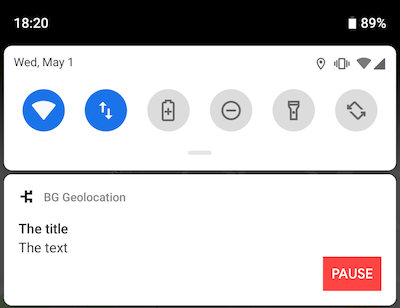
On Android, the SDK runs a foreground service while it tracks location, and Android requires every foreground service to show a notification. If the default notification doesn't suit your needs (for example, you want to add your own buttons), you can design your own notification layout:
Tip
For more information, see the API docs:
Open your project's android folder in Android Studio. Select File->New->XML->Layout XML File:

Enter a layout name. Android resource names may contain only lowercase letters, digits and underscores (for example, my_notification_layout). Android Studio creates your file in the folder android/app/src/main/res/layout/:

Even if you have no experience with Android layouts, the basics are easy to pick up. You'll mostly be adding <TextView />, <ImageView /> and <Button /> elements. Android renders notification layouts with RemoteViews, which supports only a fixed set of views. Stick to layouts such as <LinearLayout />, <FrameLayout /> and <RelativeLayout />, and elements such as <TextView />, <ImageView /> and <Button />. Android can't display a notification layout that contains any other kind of view.
The key thing to understand is the android:id of these elements. The SDK finds each element by its android:id and fills it from your app.notification configuration.
When BackgroundGeolocation renders your custom notification layout, it looks for the following android:ids. When it finds one, it fills that element from the corresponding data source:
Layout element android:id
|
Data source |
|---|---|
applicationName |
Your application name (android:label in AndroidManifest.xml) |
notificationTitle |
app.notification.title (defaults to "Background Geolocation"; set title: '' to show your application name instead) |
notificationText |
app.notification.text |
notificationSmallIcon |
app.notification.smallIcon (defaults to your app icon) |
notificationLargeIcon |
app.notification.largeIcon (filled only when you set largeIcon) |
You choose the android:id of every other element. The SDK finds your own elements by the ids you list in app.notification.strings and app.notification.actions (see below).
Set app.notification.layout to the name of your layout file, without the .xml extension:
BackgroundGeolocation.ready({
  app: {
    notification: {
      layout: 'my_notification_layout',  // <-- res/layout/my_notification_layout.xml
      title: 'The Notification Title',
      text: 'The Notification Text',
      smallIcon: 'mipmap/my_small_icon', // <-- defaults to app icon
      largeIcon: 'mipmap/my_large_icon'
    }
  }
});You can declare your own custom <TextView /> elements and render text into them with the app.notification.strings parameter.
<TextView
    android:id="@+id/myCustomElement"
    android:layout_width="match_parent"
    android:layout_height="wrap_content"
    android:text="myCustomElement" />
Each key in app.notification.strings is the android:id of a <TextView />, and its value is the text to render:
BackgroundGeolocation.ready({
  app: {
    notification: {
      strings: {
        myCustomElement: 'My Custom Element Text'  // <-- android:id="@+id/myCustomElement"
      }
    }
  }
});You can declare your own custom <Button /> elements and register click-listeners on them with the app.notification.actions parameter:
<Button
    android:id="@+id/notificationButtonFoo"
    style="@style/Widget.AppCompat.Button.Small"
    android:layout_width="60dp"
    android:layout_height="40dp"
    android:text="Foo" />
List the android:id of each button in app.notification.actions, then listen for clicks with BackgroundGeolocation.onNotificationAction:
BackgroundGeolocation.ready({
  app: {
    notification: {
      actions: [  // <-- register button listeners
        'notificationButtonFoo',
        'notificationButtonBar'
      ]
    }
  }
});

// Listen to custom button clicks:
BackgroundGeolocation.onNotificationAction((buttonId) => {
  console.log('[onNotificationAction] - ', buttonId);
  switch (buttonId) {
    case 'notificationButtonFoo':
      break;
    case 'notificationButtonBar':
      break;
  }
});
⚠️ Known issue in React Native SDK 5.x: with@transistorsoft/background-geolocation-types5.3.3 or earlier installed,onNotificationActionthrowsBackgroundGeolocation#on must be provided a {String} event as 1st argument.and registers no listener. The fix is in that types package, version 5.3.4. Every 5.x release of the SDK accepts it, so updating it fixes any 5.x install without upgrading the SDK:npm update @transistorsoft/background-geolocation-types
npm ls @transistorsoft/background-geolocation-typesshows the version you have.
While your app is terminated, onNotificationAction can't run. With app.stopOnTerminate: false and app.enableHeadless: true, button clicks go to your headless task instead, as an event named notificationaction whose params is the button's android:id:
📂 index.js
import BackgroundGeolocation from 'react-native-background-geolocation';

const BGHeadlessTask = async (event) => {
  switch (event.name) {
    case 'notificationaction':
      console.log('[BGHeadlessTask] notification button clicked:', event.params);
      break;
  }
};

BackgroundGeolocation.registerHeadlessTask(BGHeadlessTask);
Note
In TypeScript, event.params is declared as Record<string, any>, but for notificationaction it is the button's android:id string. Cast it: const buttonId = event.params as unknown as string;. With @transistorsoft/background-geolocation-types 5.3.3 or earlier, case 'notificationaction': also fails to type-check. Update the types package as described in the known issue above.
As a starting point for your custom layout, copy the following content into your new file:
<?xml version="1.0" encoding="utf-8"?>
<LinearLayout xmlns:android="http://schemas.android.com/apk/res/android"
    xmlns:tools="http://schemas.android.com/tools"
    android:layout_width="match_parent"
    android:layout_height="135dp"
    android:gravity="start"
    android:orientation="vertical"
    android:padding="15dp">

    <LinearLayout
        android:layout_width="match_parent"
        android:layout_height="wrap_content"
        android:layout_marginBottom="15dp"
        android:gravity="center"
        android:orientation="horizontal">

        <ImageView
            android:id="@+id/notificationSmallIcon"
            android:layout_width="16dp"
            android:layout_height="16dp"
            android:tint="@android:color/background_dark"
            tools:srcCompat="@tools:sample/avatars" />

        <TextView
            android:id="@+id/applicationName"
            android:layout_width="match_parent"
            android:layout_height="match_parent"
            android:paddingLeft="10dp"
            android:text="applicationName"
            android:textAppearance="@style/TextAppearance.Compat.Notification.Title"
            android:textColor="#888888"
            android:textSize="12sp" />
    </LinearLayout>

    <TextView
        android:id="@+id/notificationTitle"
        style="@style/TextAppearance.Compat.Notification.Title"
        android:layout_width="match_parent"
        android:layout_height="wrap_content"
        android:text="notificationTitle"
        android:textSize="14sp" />

    <TextView
        android:id="@+id/notificationText"
        style="@style/TextAppearance.Compat.Notification.Line2"
        android:layout_width="match_parent"
        android:layout_height="wrap_content"
        android:text="notificationText"
        android:textSize="14sp" />

    <LinearLayout
        android:layout_width="match_parent"
        android:layout_height="wrap_content"
        android:layout_weight="1"
        android:gravity="right"
        android:orientation="horizontal">

        <Button
            android:id="@+id/notificationButtonFoo"
            style="@style/Widget.AppCompat.Button.Small"
            android:layout_width="60dp"
            android:layout_height="40dp"
            android:text="Foo" />

        <Button
            android:id="@+id/notificationButtonBar"
            style="@style/Widget.AppCompat.Button.Small"
            android:layout_width="60dp"
            android:layout_height="40dp"
            android:text="Bar" />
    </LinearLayout>
</LinearLayout>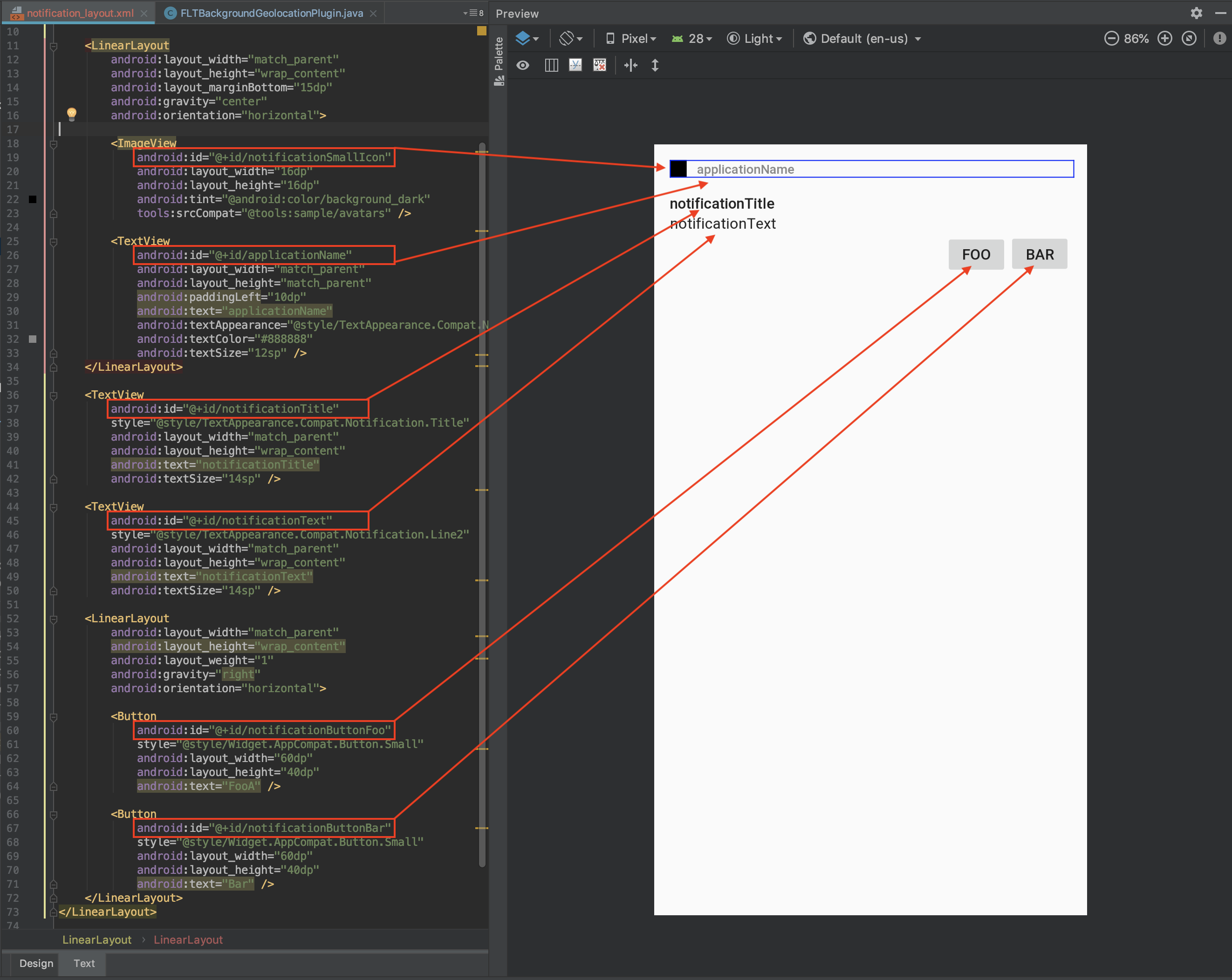
BackgroundGeolocation.ready({
  app: {
    notification: {
      title: 'The title',
      text: 'The text',
      layout: 'my_notification_layout',
      actions: [
        'notificationButtonFoo',  // <-- register button click-listeners
        'notificationButtonBar'
      ]
    }
  }
});

// Listen to custom notification button clicks (app.notification.actions)
BackgroundGeolocation.onNotificationAction((buttonId) => {
  console.log('[onNotificationAction] - ', buttonId);
  switch (buttonId) {
    case 'notificationButtonFoo':
      // Handle button click on [Foo]
      break;
    case 'notificationButtonBar':
      // Handle button click on [Bar]
      break;
  }
});
If your layout declares custom <TextView /> elements, add app.notification.strings for them as shown above. If onNotificationAction throws, update @transistorsoft/background-geolocation-types (see the known issue above).
When it can't resolve part of your notification configuration, the SDK logs a warning or error to logcat ($ adb logcat -s TSLocationManager). These appear when logger.logLevel is Warning or higher; at the default, Off, nothing is logged:
| Message | Cause |
|---|---|
Could not find custom notification layout '<layout>' in app/src/main/res/layout |
No layout file matches app.notification.layout. The SDK shows its default notification instead. |
Failed to find TextView resource: <id> |
A key in app.notification.strings doesn't match an android:id in your layout. |
Failed to find Button resource in notification_layout for notification-action: <id> |
An entry in app.notification.actions doesn't match an android:id in your layout. |
Failed to find ImageView id: notificationLargeIcon in notification layout |
You set app.notification.largeIcon, but your layout has no notificationLargeIcon element. |
Failed to decode app.notification.largeIcon (vector/xml requires Drawable): <name> |
No bitmap resource matches app.notification.largeIcon, or it names a vector/XML drawable. |
Failed to resolve app.notification.smallIcon: <name> |
No drawable or mipmap resource matches app.notification.smallIcon. The SDK uses your app icon instead. |
⚠️ If your release build setsshrinkResources true, Android's resource shrinker can't see a layout that is referenced only by name from JavaScript, and may remove it. The same applies to an icon that onlysmallIconorlargeIconnames. Keep them with atools:keeprule in a file with a name of your own, for exampleandroid/app/src/main/res/raw/my_notification_keep.xml. Don't name itkeep.xml: the SDK ships its ownres/raw/keep.xml, and an app file with the same name replaces it.<?xml version="1.0" encoding="utf-8"?> <resources xmlns:tools="http://schemas.android.com/tools" tools:keep="@layout/my_notification_layout,@mipmap/my_small_icon,@mipmap/my_large_icon" />